About URL Historian
URL Historian is a Chrome extension developed by New York University’s Center for Social Media, AI, and Politics (CSMaP). This extension allows participants to share data that contributes to better understanding of how our ever-shifting online environment impacts politics and democracy.
Overview
When the URL Historian extension is installed and registered, it automatically begins collecting URLs visited. Data collected through URL Historian is anonymized and used for academic purposes only. All collected data is securely stored on Amazon Web Services (AWS) and only accessible by CSMaP researchers.
For more information about URL Historian's data collection and privacy protection measures, see our Privacy Policy. If you have any questions on using the extension, would like to revoke your data, or encounter other technical problems, please reach out to csmapsupport@nyu.edu.
How to sign up
Sign-up takes about two minutes on a laptop or desktop computer, in Google Chrome, Microsoft Edge or Brave.
-
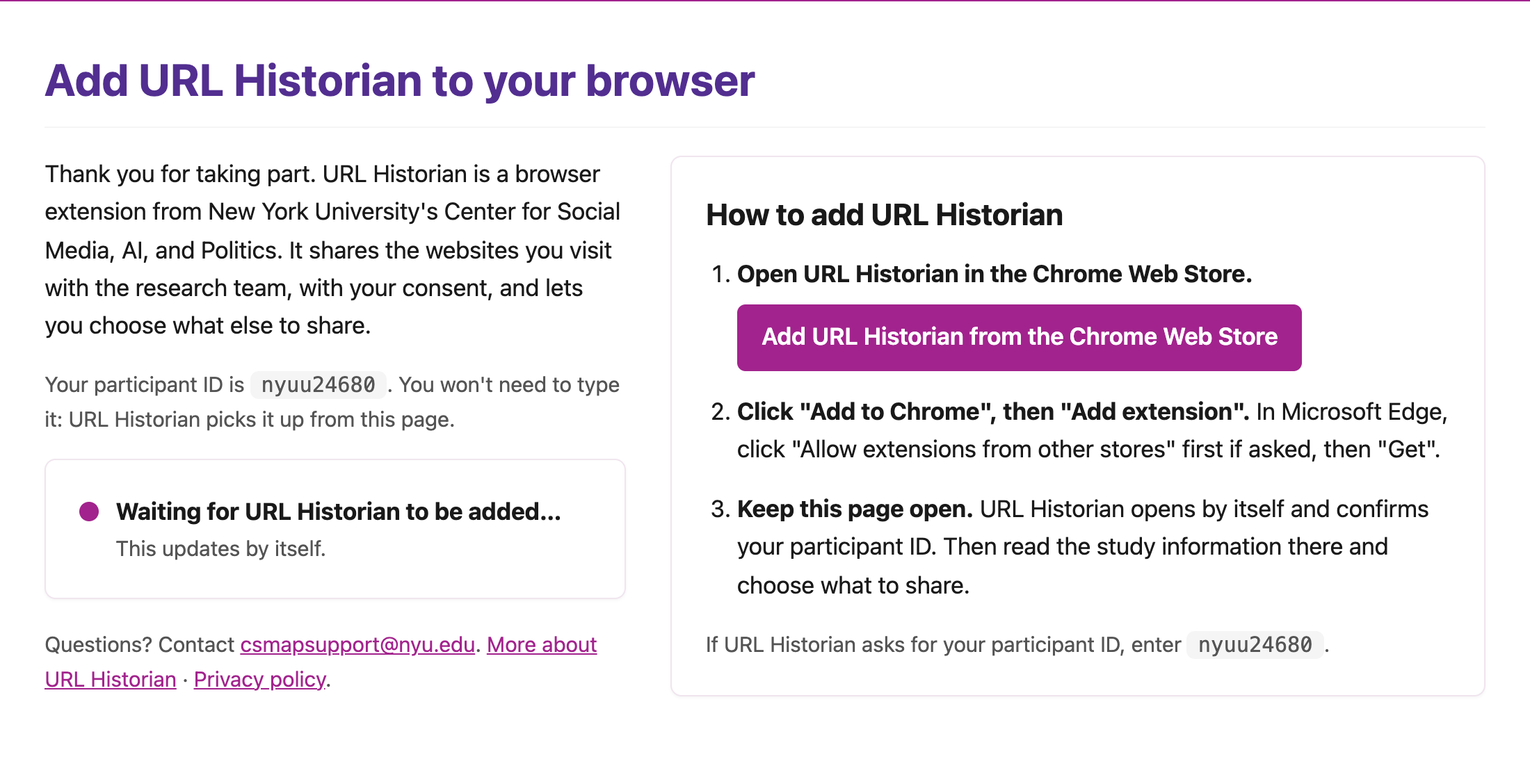
Open your survey link and add URL Historian
Your survey gives you a link to the sign-up page, which shows your participant ID. Click the button to open URL Historian in the Chrome Web Store, then click “Add to Chrome” and “Add extension”. Keep the sign-up page open.
-
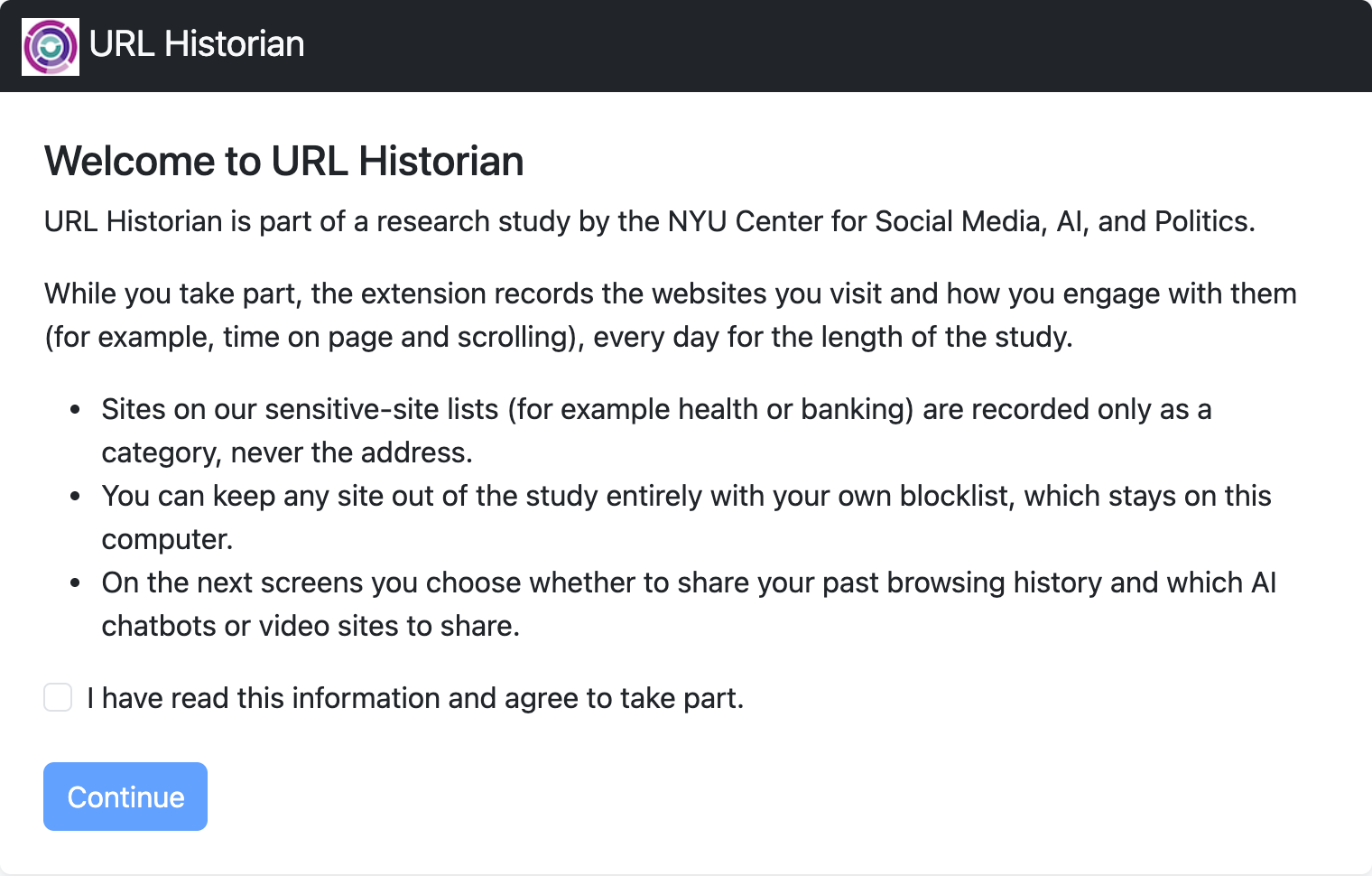
Read the study information
URL Historian opens by itself and picks up your participant ID from the sign-up page. If you have no survey link, it asks you to enter your ID. Read the study information and tick the box to agree.
-
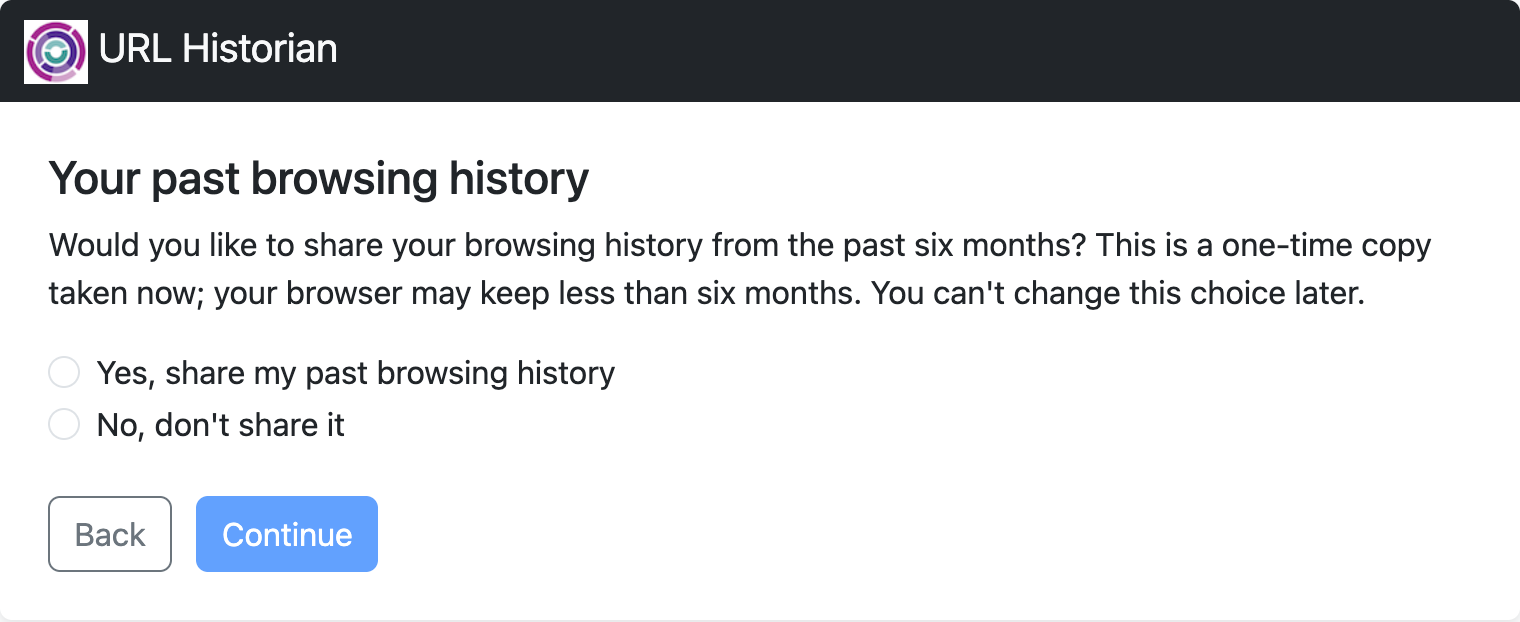
Decide about your past browsing history
Choose whether to share a one-time copy of your browsing history from the past six months. You can't change this choice later.
-
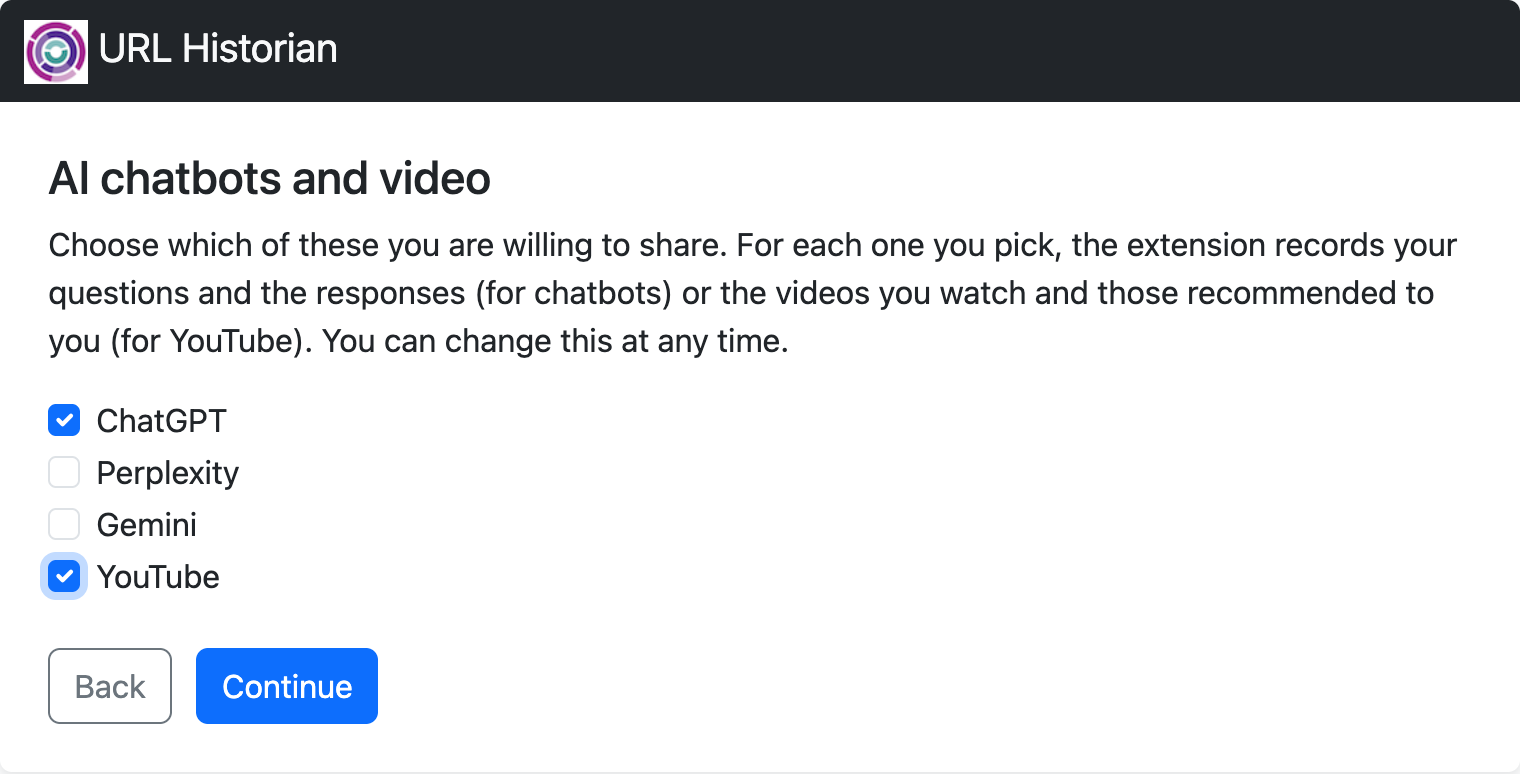
Choose AI chatbots and YouTube
Tick any of ChatGPT, Perplexity, Gemini and YouTube that you are willing to share. None is ticked until you choose it, and you can change this at any time in Settings.
-
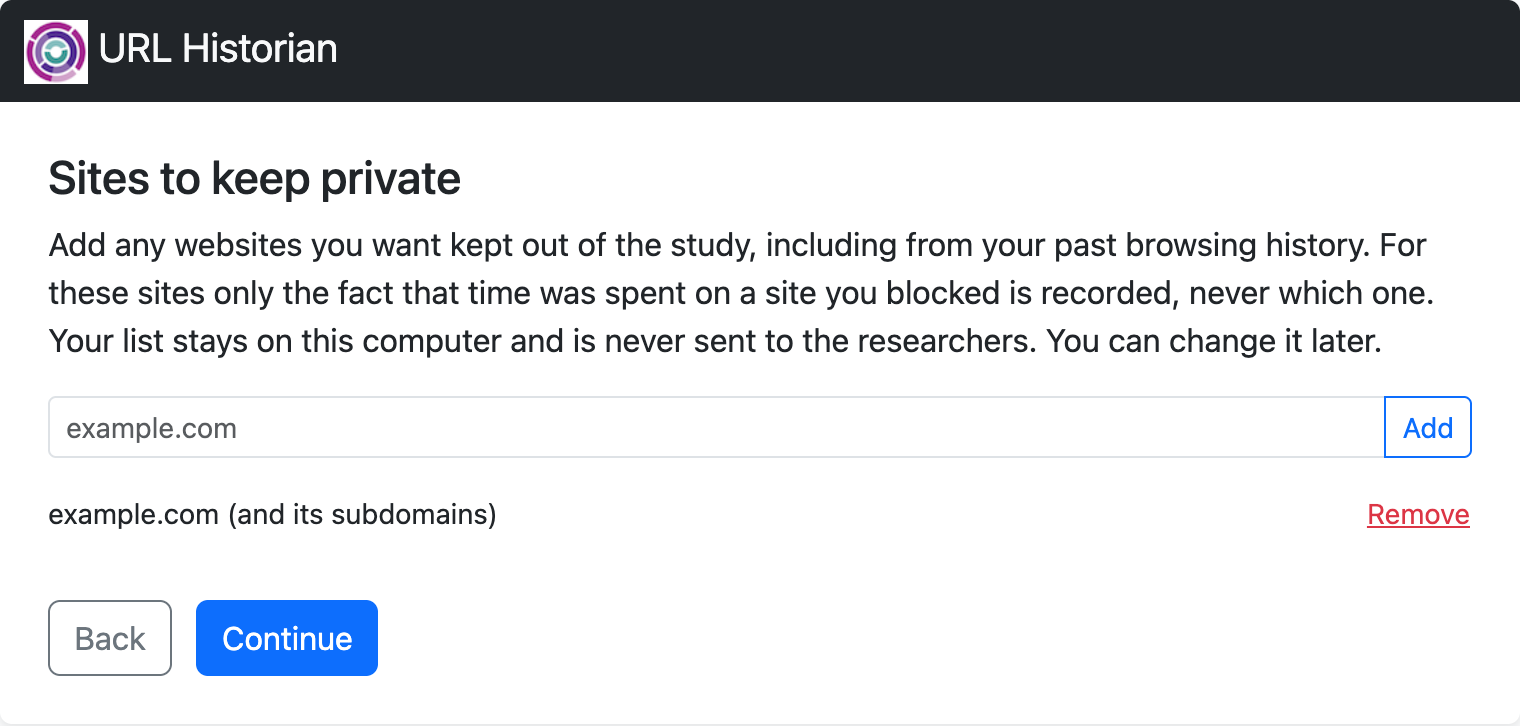
Name any sites to keep private
Optionally, add websites you want kept out of the study. Your list stays on your computer, and you can change it later in Settings.
-
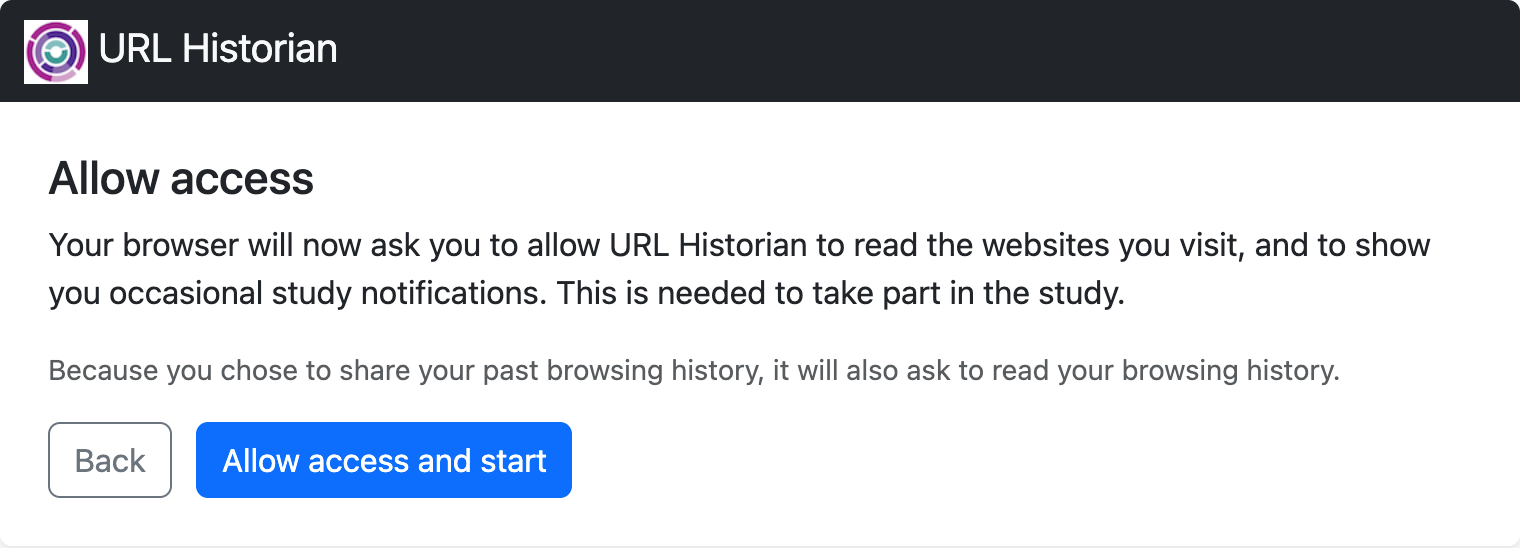
Allow access
Click “Allow access and start”. Your browser asks you to allow URL Historian to read the websites you visit, to read your browsing history (only if you chose to share it), and to show study notifications. Collection starts once you allow it.
-
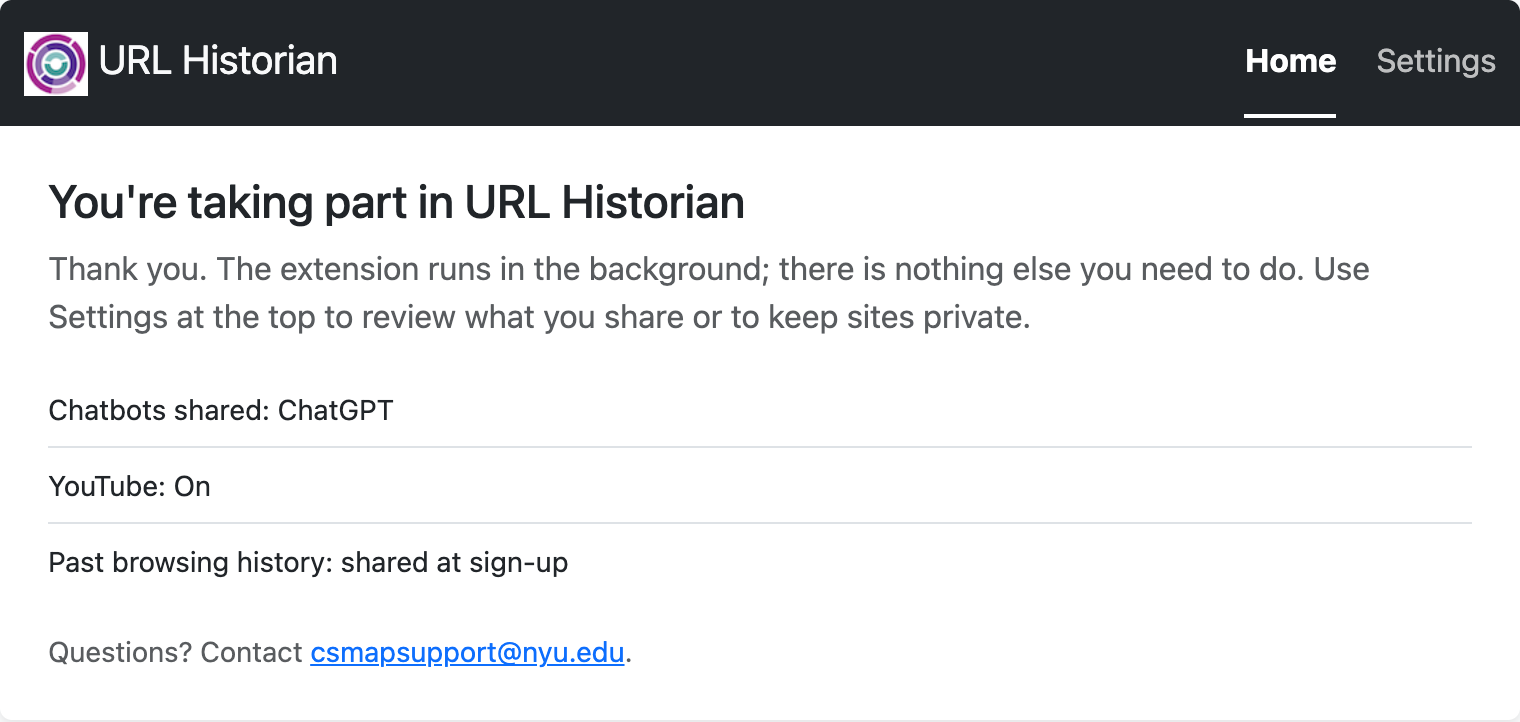
You're signed up
URL Historian runs in the background. Click its icon in the toolbar to see Home, which shows what you share and any messages from the research team.
-
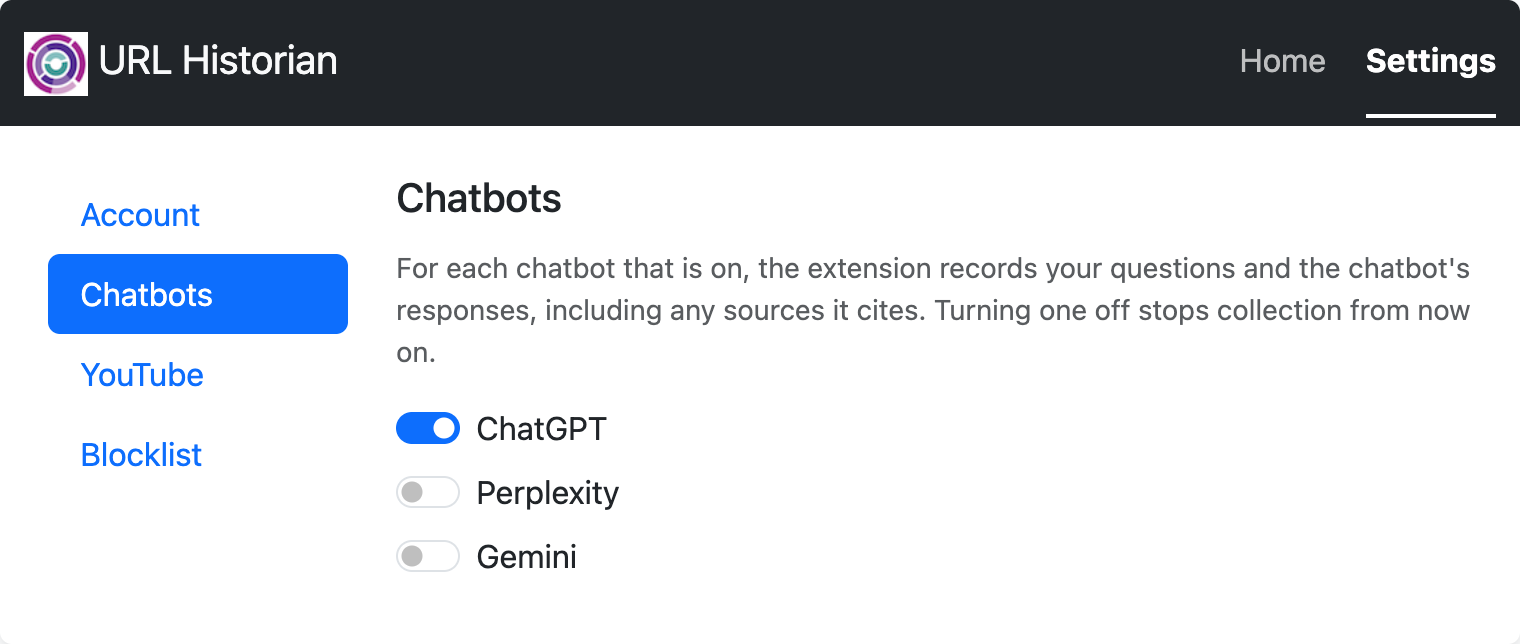
Change your choices any time
Settings lets you turn each chatbot and YouTube on or off and edit your list of sites to keep private.
Your choices
| Choice | Before you choose | Can you change it? |
|---|---|---|
| Websites you visit | Always on while URL Historian is installed | Remove the extension to stop |
| Past browsing history | Not shared unless you choose Yes | No, the choice is made once at sign-up |
| ChatGPT, Perplexity, Gemini | Off, each chosen separately | Yes, any time in Settings |
| YouTube | Off | Yes, any time in Settings |
| Sites to keep private | Empty | Yes, any time in Settings |
What is collected
| Data | What is recorded |
|---|---|
| Websites you visit | The address of each page, when you visited it and the page you came from; time on page, scrolling, and the number of clicks and key presses. Banking, email, health and similar sites are recorded only as a category, never by address; sites you keep private only as the time spent. |
| Past browsing history (if shared) | One copy of up to six months of history from before you signed up: address, page title, time and how often you visited. |
| AI chatbots (if chosen) | The questions you ask, the chatbot’s responses and the sources it cites, and a copy of the conversation page. |
| YouTube (if chosen) | The videos you watch, how long you watch them, how you got to them, and the videos recommended alongside them. |
URL Historian never collects what you type, your passwords, conversations with any other chatbot, YouTube advertising, private or incognito windows, or anything before you agree to take part.
Privacy Disclosure
Please be aware that URL Historian collects the web browsing data of anyone using Google Chrome on the computer that URL Historian is installed on. If you share your computer with anyone, you should inform them that URL Historian is installed and collecting web browsing data.
Please see our Privacy Policy for more information on what URL Historian collects. If there is anything about the study or your participation that is unclear or that you do not understand, or if you have additional questions or wish to report a research-related problem, you may contact csmap-surveys@nyu.edu.